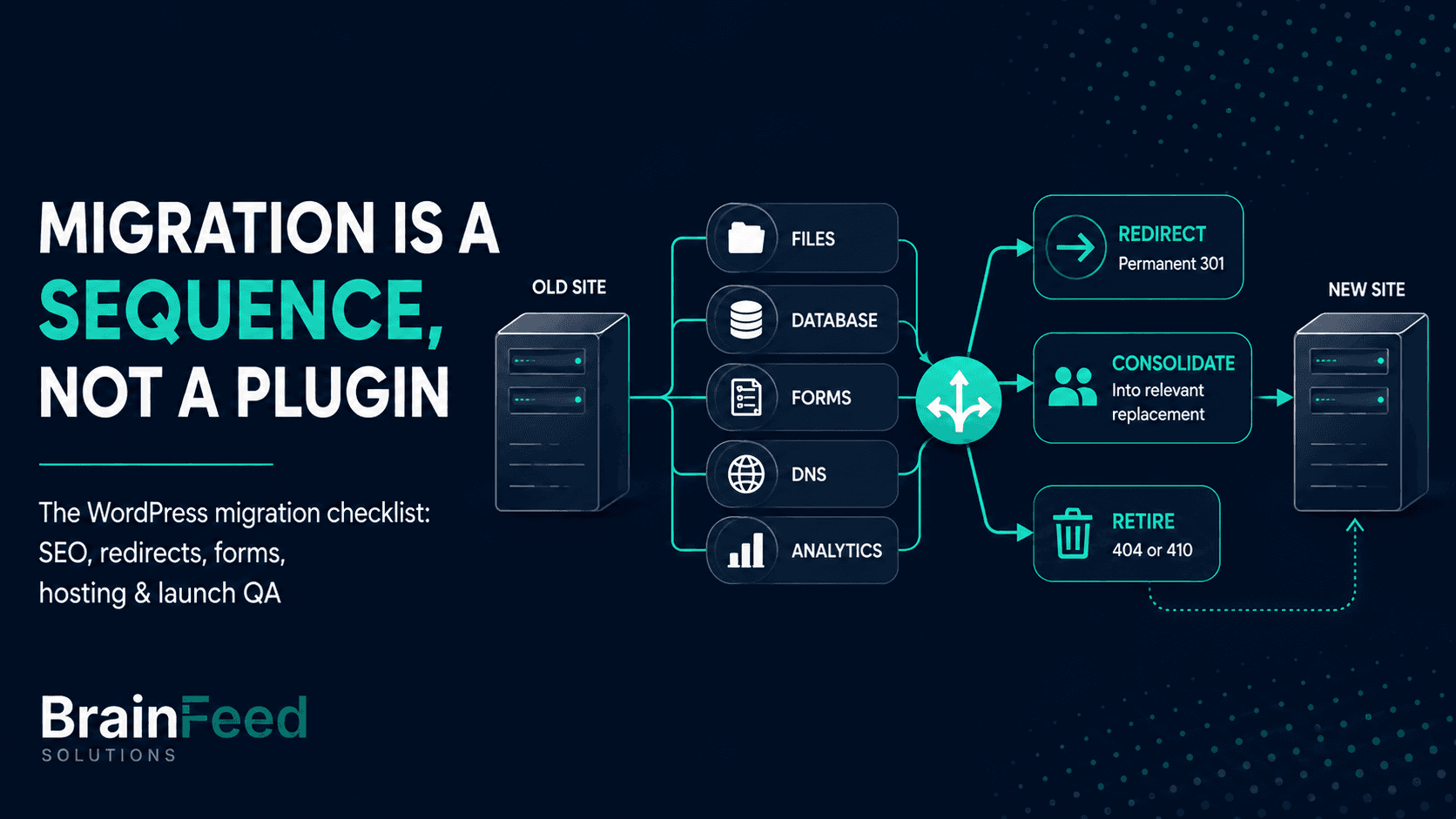
TL;DR - Most WordPress migrations don't fail on the file copy. They fail on the three things nobody put in the plan: the old-URL decision map that protects your rankings and prevents irrelevant redirects, the serialized database values that a naive find-and-replace silently corrupts, and the post-launch QA that catches broken forms and payment webhooks before your customers do. A safe migration is a sequence, not a plugin: tested backup → staging build → correct database and URL rewrite → URL decision map (if URLs change) → controlled cutover → launch QA → Search Console migration steps for domain changes. Change URLs without one and you risk losing visibility and traffic while search engines recrawl and reassess the move. This is the checklist we run on every migration.
There are two kinds of WordPress migration stories. In the first, a site moves hosts over a weekend, nobody notices on Monday, and traffic keeps climbing. In the second, a business wakes up to a sharp drop in organic sessions, a contact form that's been silently swallowing leads for a week, and a checkout that stopped firing its confirmation emails - and nobody can say exactly when it broke.
The difference between those two outcomes is almost never the tool. It's whether the migration was run as a checklist or as a hopeful drag-and-drop. Moving the files is usually the straightforward part. The work that determines whether you keep your rankings, your leads, and your revenue happens around the file copy: the URL decision map, the database rewrite, the DNS cutover, and the QA pass.
This is the checklist we work through on real client migrations - host moves, domain changes, and staging-to-production launches. It's process expertise, not an affiliate pitch for a plugin. Plugins appear here as tools inside the process, in the sections where they matter.
This article is for:
- Business owners and operators about to move a WordPress site to a new host, new domain, or from a rebuild on staging to live
- Anyone who has been told "migration is easy, we'll just move the files" and wants to know what that sentence leaves out
- Teams who've been burned by a previous migration and want a repeatable process so it never happens again
This article is NOT for:
- A step-by-step tutorial for one specific plugin - the plugins change; the checklist doesn't
- People moving off WordPress entirely to Shopify or a headless stack - that's a replatform, a different and larger project
- Owners of very small, non-transactional sites with no rankings to protect - the full checklist is more process than you need, though the same sequence still removes avoidable launch problems
What "migration" actually means (and why the type changes the risk)
"Migrate my WordPress site" can mean three very different projects, and the biggest risk lives in a different place for each:
- Host move, same domain. Files and database move to new hosting; the URL stays identical. Lowest SEO risk (no URL changes), but DNS propagation and email routing are where this one bites.
- Domain change.
oldsite.combecomesnewsite.com, or you consolidate several domains into one. Highest SEO risk. Every URL changes, so every old URL needs a documented decision: redirect it to the closest equivalent, consolidate it into a genuinely relevant replacement, or return a proper 404/410 if the content is being intentionally retired. And Google needs to be told about the move formally. - Staging to production. A rebuild or redesign goes live. The risk is that staging URLs,
noindexflags, or test payment keys leak into production.
Naming which one you're doing is the first line of the plan, because it decides how much of the redirect and Search Console work below actually applies. A redesign that also changes the URL structure is really two migrations stacked - treat it that way. If the migration is part of a larger rebuild, our guide to choosing website redesign services covers what should be scoped and agreed before the technical cutover begins.
Where the project allows it, sequence them rather than launching both changes at once: complete and stabilise the domain move first, then release the major redesign or architecture change. Google's own site-move guidance is to change one major variable at a time. If they must launch together, expect a harder diagnosis if anything goes wrong - traffic, indexing, templates, content, and URLs are all changing in the same week, so there's no clean way to tell which one caused the drop. This is worth pushing back on, because agencies routinely bundle the redesign, host move, domain change, and PHP upgrade into a single launch date.
Because the type dictates the work, here's what actually applies to each:
| Step | Host move, same URLs | Domain change | Staging rebuild |
|---|---|---|---|
| Database migration | Yes | Yes | Usually |
| URL search-replace | Only if staging or temporary URLs were introduced | Yes | Often |
| URL decision map | Only for changed URLs | Yes | If URLs change |
| DNS cutover | Yes | Yes | Depends |
| Change of Address (Search Console) | No | Yes | No |
| Live functional QA | Yes | Yes | Yes |
The checklist, in short
If you only need the sequence, this is it:
- Back up files and database - and test the restore.
- Inventory URLs, assets, baselines, forms, and integrations - and confirm Search Console access (both properties, for a domain move).
- Prepare the destination - PHP matched to production, SSL installed before cutover, capacity checked.
- Build and verify on staging.
- Rewrite URLs with a serialization-aware tool, dry run first.
- Build the old-URL decision map: redirect moved pages, consolidate genuine equivalents, and document deliberate 404/410 retirements.
- Cut over with a pre-lowered DNS TTL, and protect live data during the switch.
- QA on live: redirects, forms, payments, tracking, SEO parity,
noindexoff. - Tell Google: sitemap, and Change of Address for domain moves.
- Monitor until indexing stabilises.
Each step below is the implementation detail - what "back up properly" and "cut over deliberately" actually involve, and where each one tends to go wrong.
Phase 1 - Before you touch anything
Take a full, tested backup - and prove you can restore it. A backup you've never restored is a hope, not a safety net. Back up both the files and the database, download a copy off-server, and do a trial restore into a throwaway environment. This is also the moment migration tools like Duplicator, UpdraftPlus, or All-in-One WP Migration earn their place: they bundle files and database into a single portable package with an installer, which is genuinely useful for small-to-medium sites. Know your tool's ceiling, though - some free plugins cap the package or upload size, and large sites (big media libraries, heavy WooCommerce catalogues) often need a manual or WP-CLI move instead.
Inventory the site. You can't protect what you haven't listed. Before go-live, capture:
- A full list of live URLs (export from your sitemap, or crawl the site with Screaming Frog or a similar tool)
- Baseline organic clicks, impressions, average position, and top landing pages from Search Console, so you know which URLs and search patterns need the closest monitoring afterwards
- PageSpeed or Core Web Vitals baselines for your key page templates, so the post-launch speed check has something concrete to compare against
- Every form and where its submissions go (email, CRM, database)
- Every third-party integration: payment gateway, email/SMTP, analytics, booking, chat, webhooks
- PHP version, WordPress version, and the active plugin/theme list
- Search Console ownership of the existing property - and for a domain or URL-prefix move, all relevant old and new properties, including the subdomain,
www, non-www, HTTP, and HTTPS variants. Confirm the verification method will survive the migration. Sort this in Phase 1, not Phase 6: the worst time to discover nobody has sufficient access is the moment you need to submit the move. (A same-domain host move usually just keeps using the same property.) - For a domain change, the important non-page URLs too: images, video, PDFs, downloads, and any other hosted assets that pull search traffic or carry inbound links. Assets move with the site and are easy to forget until a linked PDF starts 404ing.
Set up the destination properly first. Provision the new host and initially match the current production PHP version - upgrade PHP only once the new version has been deliberately compatibility-tested on staging. A PHP jump introduces a whole separate set of variables (theme, plugins, custom code, deprecated functions), and bundling it into the migration means a broken page could be the move or the upgrade, with no quick way to tell which. And - critically - install the SSL certificate on the destination before you cut over, not after. A migration that lands on http:// and then scrambles for HTTPS creates mixed-content errors and a second round of redirects you didn't need.
Check the destination has headroom, too. Confirm the new host has enough CPU, memory, database capacity, and request capacity for normal traffic plus the increased crawler activity that follows a move - Google notes crawling can rise temporarily as requests to old URLs get redirected through to the new server. A host sized exactly for today's steady-state traffic can struggle in the week after launch, which is the worst possible week to be slow.
Phase 2 - The migration itself
Build on staging, never live. Move the site into a staging environment on the new host and get it fully working there before a single visitor is routed to it. Staging is where you find the problems on your schedule instead of your customers finding them on theirs. Password-protect or IP-restrict staging where you can - don't rely on an obscure URL to keep it out of Google - and write down every noindex, robots rule, or access restriction you apply to staging so you can deliberately remove it at launch.
Handle the database and URLs correctly - this is where silent corruption happens. When the domain or path changes, the site URLs stored across the database need to be updated safely. WordPress also stores identifiers and structured values that should not be treated as ordinary text, so this is not a job for a blanket SQL replacement. The trap: WordPress stores a lot of settings as serialized PHP values - arrays, objects, and other structured data (theme options, widgets, ACF fields, and countless plugin settings). A naive UPDATE ... REPLACE SQL statement changes the text but not the length prefixes serialization depends on, which silently breaks those fields - and you often won't notice until a widget or a settings panel comes up blank weeks later.
Use a serialization-aware tool, always with a dry run first.
WP-CLI, if you have SSH access. It handles serialized data correctly and is the fastest, most reliable option for large sites:
wp search-replace 'https://oldsite.com' 'https://newsite.com' \
  --all-tables-with-prefix \
  --skip-columns=guid \
  --dry-run
--all-tables-with-prefix includes plugin-created tables that use the WordPress database prefix but may not be registered with $wpdb - without it, WP-CLI only touches the tables WordPress knows about, and URLs sitting in a form plugin's or a booking plugin's own tables get left behind. Review the dry-run table list before committing the replacement. On multisite, scope the operation deliberately and use --network where the move applies across the network.
--skip-columns=guid is not optional housekeeping. A post's GUID is an internal identifier, not an address - feed readers use it to tell whether they've already seen a post - so rewriting GUIDs can cause feed readers to treat existing posts as new items. WordPress's own migration guidance uses the same exclusion. Review the dry-run output, then run the identical command again without --dry-run.
Better Search Replace, if you're working in the dashboard rather than the command line. Select the relevant database tables, and for an existing live site being migrated, leave Replace GUIDs unchecked. Keep Run as dry run enabled for the first pass and review the affected rows and counts before running the replacement for real. Leaving Replace GUIDs off is the dashboard equivalent of --skip-columns=guid, and the plugin's own search-and-replace documentation makes the same recommendation - without it, the two methods don't give you equivalent safeguards. (The narrow exception is a site that has never been publicly live, where no feed reader has seen the GUIDs yet.)
Either way: dry-run, review the count, then run it for real. And search-replace the site's real base URLs - avoid replacing short or generic strings, which can match unrelated content across the database.
If you're the business owner rather than the person typing the commands, you don't need to run any of this yourself - but you do need to confirm your developer or agency used a serialization-aware tool with a dry run, not a raw SQL find-and-replace. It's one of the most useful questions for detecting a migration process that may quietly corrupt stored settings.
Confirm the environment, not just the pages. On staging, verify PHP and WordPress versions match your plan, permalinks are set to the same structure (Settings → Permalinks → Save, to flush rewrite rules), and file permissions are sane. Then walk the site.
Phase 3 - The URL decision map
If you take one thing from this checklist, take this: when URLs change, every old URL needs a documented destination or retirement decision before go-live, not after.
A 301 is a permanent redirect. It sends visitors to the new URL and signals to search engines that the old URL's ranking signals should transfer to the new one. Where a relevant replacement exists, missing the redirect leaves the old URL returning a 404 - depriving visitors of the destination you intended and making signal transfer harder for search engines. Google's site move with URL changes guidance is the reference worth reading before you plan the map.
The decision map is a simple, unglamorous spreadsheet: every old URL in one column, and in the next its exact new destination or a documented decision to retire it. Build it from the URL inventory you captured in Phase 1. Most rows will be redirects; the point of calling it a decision map is that "no redirect" is also a valid, deliberate answer. Rules that keep it clean:
- One hop wherever possible. Redirect each old URL straight to its final destination. Redirect chains (A → B → C) add latency, complicate crawling, and make migration problems harder to diagnose.
- Map to the closest equivalent, not the homepage. Bulk-redirecting unrelated old pages to the homepage may be treated by Google as a soft 404 and gives users a poor destination. Where no equivalent or consolidated replacement exists, document the decision and let the retired URL return a proper 404 or 410 rather than redirecting it somewhere irrelevant - that's a content decision, not a default-to-home reflex.
- Don't forget the variants.
wwwvs non-www,httpvshttps, and trailing-slash differences all need to resolve to one canonical version.
Implement redirects at the server level (Nginx/Apache) for large maps, or with a redirect plugin (Redirection, Rank Math, Yoast) for smaller ones. Keep the map file - you'll test against it after launch, retirements included.
Phase 4 - Cutover and DNS
Cut over deliberately. Lower the relevant DNS TTL well before launch - ideally several days ahead (Google recommends at least a week) - because existing DNS answers stay cached at the old TTL until it expires, so a last-minute change may not take effect in time. Point DNS at the new host during a low-traffic window. Some networks pick up the change within minutes while others keep serving the previous destination until their cached records expire - so monitor both servers rather than promising anyone a fixed propagation time. Keep the old host live and untouched through this window; don't cancel it the same day.
Re-check business and transactional email separately - they're two different systems. MX records control where inbound email to your domain is delivered; confirm they still route correctly. WordPress outbound email - form notifications, password resets, order confirmations - is a separate system from inbound MX routing. It may run through the server's PHP mail configuration, an SMTP provider, or an email API, each with its own credentials. Identify which one this site actually uses, then test it end to end, and if the sending setup changed, verify the SPF, DKIM, and DMARC records too. If the site sends transactional email, this is a launch-blocker, not a nice-to-have.
Protect live data during the cutover. While DNS propagates, some visitors still land on the old server and some on the new one - and any orders, form submissions, sign-ups, bookings, or membership changes they make can land in the old database after you've already taken the migration copy. For a brochure site, the final copy and DNS switch is usually enough. For WooCommerce, membership, booking, or any transactional site, pick one of three approaches:
- Put the old site into a brief maintenance or read-only window while you copy the final database.
- Run a final database delta sync immediately before cutover.
- Route all live transactions to a single environment until DNS traffic has settled.
And decide the rollback trigger before launch: who can call it, how long the decision window stays open, and which database is authoritative. Keeping the old host online is not a rollback plan unless the data can also be reconciled.
Phase 5 - Launch QA (before you tell anyone it's live)
The file copy worked; that doesn't mean the site works. Walk this list on the live site:
- Redirects and retired URLs. Test the complete old-URL decision map, not just the redirects. URLs with relevant replacements should return one permanent redirect straight to the correct destination, with no chains. URLs you deliberately retired without a suitable replacement should return the documented 404 or 410 - those are the plan working, not migration failures. An unplanned 404 is the thing you're hunting for.
- Forms - actually submit them, end to end. A form can fire its notification email and still fail elsewhere in the funnel. Send a real test through every contact, quote, and signup form and confirm the on-page success message, the notification email, any customer autoresponder, the CRM record, any marketing automation, and the analytics conversion event. For file-upload forms, confirm the attachment arrives and opens. Broken forms are among the most costly silent migration failures because nothing on screen looks wrong.
- Payments and e-commerce. For WooCommerce or any checkout: run a test transaction, confirm the order records, and confirm the confirmation email and any webhooks fire. Verify you're on live payment keys, not staging/sandbox keys.
- Analytics and tracking. Confirm GA4, Google Tag Manager, any advertising pixels, and your consent/cookie banner all load and fire on the new site. Migrations routinely drop a tracking snippet, and nobody notices until the numbers look wrong in next month's report.
- SEO parity. Compare a representative sample of important pages before and after launch and confirm the titles, meta descriptions, headings, canonical URLs, robots directives, structured data, and internal links all survived the move (check
hreflangtoo if the site is multilingual). Every new URL should reference itself as canonical unless there's a deliberate reason not to, and internal links should point straight at the new URLs rather than relying on redirects. This matters most on a redesign or staging-to-production launch, where templates may have changed even when the domain hasn't. - Search engine visibility. Confirm Settings → Reading → "Discourage search engines" is unchecked. A staging
noindexcarried into production will de-index the whole site - it's the migration equivalent of leaving the handbrake on. - HTTPS and mixed content. Every page loads over HTTPS with no mixed-content warnings; no hardcoded
http://asset URLs survived the search-replace. - Core Web Vitals and speed. New host, new performance profile. Run PageSpeed Insights on your key templates and confirm you didn't regress.
- The functional walk-through. Menus, internal links, images, search, login, and any membership/gated content. Test on mobile, not just desktop.
Phase 6 - Tell Google (post-launch SEO)
Launching is not the finish line for search engines - they need to be told, especially on a domain change.
- Submit the migration sitemaps. For a domain or URL-changing move, retain and submit a sitemap containing the old URLs alongside the new one. The old sitemap lets you watch de-indexing and redirect processing; the new sitemap tracks discovery and indexing of the replacements. Search Console may report redirect warnings against the old sitemap during the move - those are expected, not a fault. For a same-domain host move where URLs don't change, just confirm the existing sitemap is still accessible and current.
- Use the Change of Address tool (domain moves only). In Search Console, run Change of Address from the old property to the new one - this step does not apply to a same-domain host move where the URLs don't change. Per Google's updated 2026 site-move guidance, you must submit change-of-address requests for all subdomains and for both the
wwwand non-wwwvariants of the old domain. Omitting a variant leaves that part of the old site outside the submitted move. And never chain moves: if you've just moved A → B, you can't immediately move B → C. - Update the links you control. Redirects cover you, but they're a safety net, not a filing system. Point internal links straight at the new URLs, then work through the external ones you own: social profiles, advertising landing-page URLs, email templates and campaign links, and any major partner or directory listings worth the ask. Prioritise by traffic - the handful of high-traffic external links matter far more than an exhaustive sweep.
- Keep the 301s live for the long haul. Redirects aren't temporary. Google's guidance is to keep them for at least a year, and indefinitely is better where old URLs still receive visitors or inbound links - people and other sites keep linking to old URLs for years.
- Monitor intensively for the first 2-4 weeks - and continue until indexing stabilises. Larger sites and more complex domain moves can take longer than that to process. Monitor the Page indexing report in Search Console for unexpected "Not found" URLs and indexing exclusions, use URL Inspection on your priority pages, and review server logs for crawl or response errors. Watch analytics for traffic drops too. A brief fluctuation while Google recrawls and processes the move is normal; a sustained decline is a signal to investigate - redirects, indexing, canonicals, internal links, content parity, and server performance - rather than waiting for it to recover on its own.
Plugin vs manual: which is safer for large sites?
For a small brochure site, a reputable WordPress migration plugin such as Duplicator, All-in-One WP Migration, or UpdraftPlus is fast, safe, and completely appropriate. The plugin route starts to strain when the site gets big: large media libraries and heavy databases blow past free-tier package or upload limits, shared-host timeouts interrupt the import, and a half-finished package restore is worse than no restore. At that scale, a manual move - files via SFTP/rsync, database via mysqldump, URLs rewritten with WP-CLI - gives you control over each step and a clean rollback point if anything fails. The honest rule: use the plugin until the site's size or complexity makes the plugin the risk, then move to a manual, staged process. Knowing where that line sits for your site is exactly the kind of call an experienced team makes before the migration, not during it.
Launch-day handover checklist
The sequence at the top of this article is the summary. This is the version to actually run the migration against: copy it into your project doc, put a name against every row, and don't let anyone declare the site live until the last column is filled in. Most migration disasters aren't caused by a step nobody knew about - they're caused by a step everyone assumed somebody else had done.
| # | Step | Done by | Verified by |
|---|---|---|---|
| 1 | Back up files + database, download off-server, and test-restore it | ||
| 2 | Inventory URLs, Search Console baselines, speed baselines, forms, and integrations | ||
| 3 | Verify Search Console ownership of the existing property - and, for a domain or URL-prefix move, all relevant old and new properties and variants - and preserve the verification files, tags, or DNS records through cutover | ||
| 4 | Prep the destination - PHP matched to production, SSL installed up front, capacity headroom confirmed | ||
| 5 | Build on staging, never on live; log every noindex and access restriction applied | ||
| 6 | Rewrite URLs with a serialization-aware tool, GUIDs excluded, dry run first | ||
| 7 | Document every old URL - redirect to the closest relevant equivalent, consolidate into a genuinely suitable replacement, or retire with a deliberate 404/410 | ||
| 8 | Cut over with a DNS TTL lowered days in advance; protect live data during the switch; keep the old host running; document the rollback trigger, decision owner, rollback window, and authoritative database | ||
| 9 | QA on live - URL decision map incl. retirements, end-to-end forms, payments, analytics and pixels, SEO parity, noindex off, HTTPS, speed | ||
| 10 | Tell Google - submit the sitemap and, for eligible domain moves, run Change of Address; update internal links and the external links you control; keep 301s for at least a year, and longer where old URLs still get traffic or links | ||
| 11 | Monitor Search Console and analytics intensively for 2-4 weeks, and keep watching until indexing stabilises |
A WordPress migration is a low-drama event when it's run as a sequence and a genuine hazard when it's run as a file copy with fingers crossed. If you're moving a site that carries real traffic, real leads, or real revenue, our web design and development team can review the hosting setup, URL decision map, and launch checklist before you cut over - or run the whole migration end to end, with the decision map and QA pass built in rather than bolted on.